Alexa, Show More
Alexa, Scroll Down
Alexa, Select Number _
Alexa, Watch _________
Alexa, Go Home
Alexa, Go To My Videos
Alexa, Go To Movies
Alexa, Go To My Watchlist
Alexa, Go To My Video Library
Alexa, Show Me Comedies
Alexa, Scroll Right
Alexa, Switch To Cable
Alexa, Tune to ____
How to Install Latest Adhell 3.1.1+ with new Standard Knox License Key – Adblock Samsung
adhell 4:53 PM
Method #1
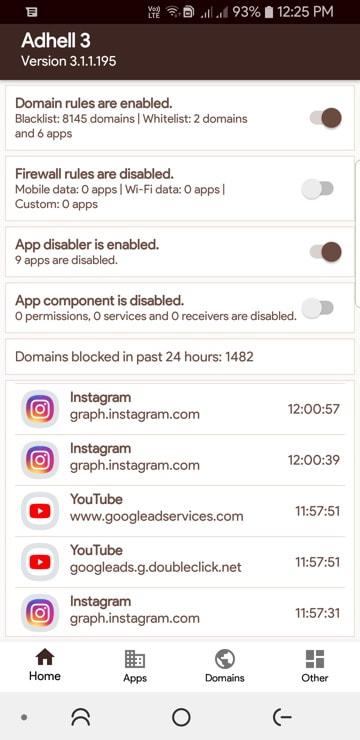
Use Adhell 3 to block ads - no root required. (Ignore all the tutorials, literally just install the apk and make and use a SKL key (Samsung Knox License) key
Method #2
How to download and install Adhell 3.1+
In order to install Adhell 3.1, you will need to download the full source code, extract it, open the project in Android Studio, and compile it to install on Adhell 3 APK onto your Samsung Galaxy device. There is no direct APK available right now.
Step 1: Generate the Samsung Knox SDK license key
Use Adhell 3 to block ads - no root required. (Ignore all the tutorials, literally just install the apk and make and use a SKL key (Samsung Knox License) key
Method #2
How to download and install Adhell 3.1+
In order to install Adhell 3.1, you will need to download the full source code, extract it, open the project in Android Studio, and compile it to install on Adhell 3 APK onto your Samsung Galaxy device. There is no direct APK available right now.
Step 1: Generate the Samsung Knox SDK license key
- Sign in here with your Samsung account.
- The Knox SDK can be downloaded here.
- Click on Generate License Key at the left option panel.
- Go to "Knox SDK" section.
- Give the key a name in "Add a key alias".
- Press "Generate license key".
- Copy the key. Note: The key generally starts with letters "KLM"
- Once generated, the Samsung Knox L:icense key can be obtained here.
- Official Adhell 3.1 from Github | Register > Login > Search "Adhell3"
Download the full source code zip from here:
- Adhell 3 Source Code Zip
- Mirror Downloads Repository For Adhell 3.1
Step 3: Install Adhell 3.1.1
- On your Samsung device, Enable USB Debugging on your phone - Go to setting > About phone > Software Information > Press rapidly about 10 times on Build Number until a message "You are now a developer!" appears. > Go back to settings > Developer Options > Turn on USB Debugging.
- Connect your phone to your PC. When you see a popup on Phonee, select always allow from this computer to enable USB Debugging.
- Download the latest Adhell master zip from Gitlab to PC or computer.
- Now extract the Adhell source zip to PC.
- Download the Knox SDK 3.1 package to PC> (Register > Login > Samsung Developer Account)
- Also, download the associated supportlib.jar Download Support Lib.
- Extract both the Knox SDK 3.1 Package and Support Lib zip to PC.
- Copy the libs folder from Knox SDK to Adhell source code app\libs folder. Similarly, all the contents of supportlib.jar to Adhell master\app\libs.
- Now we need to create the package name. To do so, create app.properties file inside app folder of Adhell 3 source app\app.properties. Open the file using NotePad++ and put package.name=your.package.name in the first line of the file.
Download the apk from Google drive. Then download the 'QuickShortcutMaker ' from Google play.
Go to the widget and choose the 'quick shortcut maker' icon, and drag to the the home screen. Tap the 'quick shortcut maker' icon and search 'record screen' . Choose the 1st one, Create the file and the 'record screen' will replace the quick shortcut maker icon. Do the second one for the record screen setting. Go to the widget, drag another quick shortcut maker to home screen , tap it and choose the 2nd record screen. Create it. Remark. The 2nd screen record is for screen record setting. Enjoy. Here's a video of what it should look like.
Credit to Xepher97
1. Install Downloader
2. Input: http://get.droidadmin.com to install Droid Admin
3. Launch Droid Admin
4. Use Code: 85810914
5: Enjoy
How to Install the Unsupported App Store to Plex
You cannot install the Unofficial App Store via the Plex Media Server itself. Instead, you need to do it manually.
The old method simply required you to download a zip file and put it into Plex’s plugins folder. However, a new version of the App Store was released in early 2016, and the installation method is now slightly more complicated.
First, download the WebTools plugin from GitHub. You need the file titled “WebTools.bundle.zip”. Once the download is complete, extract the file and ensure the extracted directory is calledWebTools.bundle.

Now move the file into your Plex plugin folder. It can be found at %LOCALAPPDATA%\Plex Media Server\ on Windows and ~/Library/Application Support/Plex Media Server/ on a Mac.

The new version of the Unsupported App Store is contained within this plugin. To access it, enter your Plex Media Server’s IP address followed by :33400, log in using your Plex credentials, and click on Unsupported App Store under Available Modules.

From the resulting screen, you can search for channels by name or category. Add the channels by clicking on Install under the channel name.
Warning: The following channels/apps are unsupported by Plex. As such, they may be unfinished, become buggy, or even stop working completely.
THE BEST ADDON FOR KODI 2016 : KOBRA APP INSTALLER FOR ANDROID TV BOX PREVIEW & INSTALLATION GUIDE
2016 8:54 AM
THE BEST ADDON FOR KODI 2016 : KOBRA APP INSTALLER FOR ANDROID TV BOX PREVIEW & INSTALLATION GUIDE
This KODI program addon will let you install the best media app available for android OS on just a click of a button.
All Top Android Application Like:
1. Showbox
2. Movies HD
3. Playbox.
4. Mouse Toggle
5. amazon fire tv cashe
and many more on a click.
Source Repo: http://kobra24.com/kobra-repository/
Share.. Like Comment and subscribe
This KODI program addon will let you install the best media app available for android OS on just a click of a button.
All Top Android Application Like:
1. Showbox
2. Movies HD
3. Playbox.
4. Mouse Toggle
5. amazon fire tv cashe
and many more on a click.
Source Repo: http://kobra24.com/kobra-repository/
Share.. Like Comment and subscribe


