Hue Lights

This option works through the Hue Lights application. The Touchlink option is currently only built into an IOS application, if you have an droid device you will have to use Lamp Finder on a PC or MAC


Open the Hue Lights app and go to Settings then Touchlink

Make sure your light is powered on and within 1 meter of the bridge, it will not find it if it is not close enough

It will scan for about a minute and thirty seconds, if it does not find your light, try powering it off, start the scan and power it on.
Download Hue Lamp Finder for MAC, Windows, and Linux
How to Use Lamp Finder
Download and Open Hue Lamp Finder. This is a Java application so you have to have java installed, you can download it here.

Make sure the computer you are using is on the same network that your hue bridge is on and press Find Bridge.

Once it finds your hue bridge it will ask you to press the big button on your hue bridge before the timer runs out.

Before you click on Find Light, make sure the bulb you are trying to connect is moved within a 1 to 3 feet of the hue bridge and powered on. Power off all other hue lights by the light switch and then press Find Light.

If your light is found it will flash and you will see it in your Philips Hue application after a minute or so. If it does not find your light, power off the light, close lamp finder. Start lamp finder again and search for your light, while it is searching power on the light. Repeat this process until all lights are found.
Credit: Huetips
Alexa, Switch To Cable
Alexa, Tune To ____
Alexa, Go Home
Alexa, Watch ____
Alexa, Go To ____
Alexa, Show More
Alexa, Scroll Down
Alexa, Select Number _
Alexa, Watch _________
Alexa, Go Home
Alexa, Go To My Videos
Alexa, Go To Movies
Alexa, Go To My Watchlist
Alexa, Go To My Video Library
Alexa, Show Me Comedies
Alexa, Scroll Right
Alexa, Switch To Cable
Alexa, Tune to ____
How to Install Latest Adhell 3.1.1+ with new Standard Knox License Key – Adblock Samsung
adhell 4:53 PM
Method #1
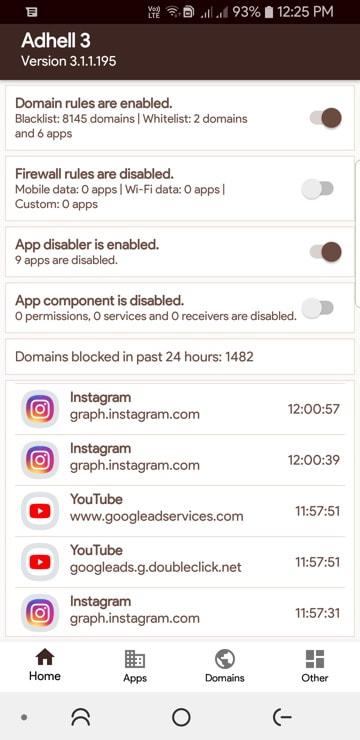
Use Adhell 3 to block ads - no root required. (Ignore all the tutorials, literally just install the apk and make and use a SKL key (Samsung Knox License) key
Method #2
How to download and install Adhell 3.1+
In order to install Adhell 3.1, you will need to download the full source code, extract it, open the project in Android Studio, and compile it to install on Adhell 3 APK onto your Samsung Galaxy device. There is no direct APK available right now.
Step 1: Generate the Samsung Knox SDK license key
Use Adhell 3 to block ads - no root required. (Ignore all the tutorials, literally just install the apk and make and use a SKL key (Samsung Knox License) key
Method #2
How to download and install Adhell 3.1+
In order to install Adhell 3.1, you will need to download the full source code, extract it, open the project in Android Studio, and compile it to install on Adhell 3 APK onto your Samsung Galaxy device. There is no direct APK available right now.
Step 1: Generate the Samsung Knox SDK license key
- Sign in here with your Samsung account.
- The Knox SDK can be downloaded here.
- Click on Generate License Key at the left option panel.
- Go to "Knox SDK" section.
- Give the key a name in "Add a key alias".
- Press "Generate license key".
- Copy the key. Note: The key generally starts with letters "KLM"
- Once generated, the Samsung Knox L:icense key can be obtained here.
- Official Adhell 3.1 from Github | Register > Login > Search "Adhell3"
Download the full source code zip from here:
- Adhell 3 Source Code Zip
- Mirror Downloads Repository For Adhell 3.1
Step 3: Install Adhell 3.1.1
- On your Samsung device, Enable USB Debugging on your phone - Go to setting > About phone > Software Information > Press rapidly about 10 times on Build Number until a message "You are now a developer!" appears. > Go back to settings > Developer Options > Turn on USB Debugging.
- Connect your phone to your PC. When you see a popup on Phonee, select always allow from this computer to enable USB Debugging.
- Download the latest Adhell master zip from Gitlab to PC or computer.
- Now extract the Adhell source zip to PC.
- Download the Knox SDK 3.1 package to PC> (Register > Login > Samsung Developer Account)
- Also, download the associated supportlib.jar Download Support Lib.
- Extract both the Knox SDK 3.1 Package and Support Lib zip to PC.
- Copy the libs folder from Knox SDK to Adhell source code app\libs folder. Similarly, all the contents of supportlib.jar to Adhell master\app\libs.
- Now we need to create the package name. To do so, create app.properties file inside app folder of Adhell 3 source app\app.properties. Open the file using NotePad++ and put package.name=your.package.name in the first line of the file.
Download the apk from Google drive. Then download the 'QuickShortcutMaker ' from Google play.
Go to the widget and choose the 'quick shortcut maker' icon, and drag to the the home screen. Tap the 'quick shortcut maker' icon and search 'record screen' . Choose the 1st one, Create the file and the 'record screen' will replace the quick shortcut maker icon. Do the second one for the record screen setting. Go to the widget, drag another quick shortcut maker to home screen , tap it and choose the 2nd record screen. Create it. Remark. The 2nd screen record is for screen record setting. Enjoy. Here's a video of what it should look like.
Credit to Xepher97
1. Install Downloader
2. Input: http://get.droidadmin.com to install Droid Admin
3. Launch Droid Admin
4. Use Code: 85810914
5: Enjoy


