Fortunately, if you have an Android smartphone, then you have a way of entering extension information in your contact's details and having your Android automate the dialing process for you.
---
Tutorial Notes
Rather than manually entering a person's extension number, there is a way to automatically have your Android dial the connection once the call connects.
First, go to Contacts. If you want to create a new contact, tap the menu key and then tap New contact. Otherwise, long-press on the contact you want to add extension info for and tap Edit contact.
In the phone numbers section, either select the phone number that you want to add extension information to or add a new number.
Now, press the symbols key in the lower-left of the keypad. You'll notice the buttons Pause and Wait here. Pause inserts a two-second pause while Wait will wait until the call connects.
Insert a Wait after the phone number. Now, press the numbers key and enter the extension that you'd like to dial.
Some phone systems require that you enter a number before entering the extension. For example, if you need to press 1 before entering an extension, then you'll need to add a 1 and then a Pause after your Wait.
Now when you call your contact, you'll be asked whether you want to use the tones that you entered for that contact.
Ok guys n gals, so I've found out how to do this. Before you continue any further, understand that you must be rooted and running a custom ROM that supports 4G toggling (i.e. AOKP).
Step 1: Download this app from the Play Store https://play.google.com/store/apps/details?id=com.intangibleobject.securesettings.plu gin&feature=nav_result#?t=W251bGwsMSwxLDMsImNvbS5p bnRhbmdpYmxlb2JqZWN0LnNlY3VyZXNldHRpbmdzLnBsdWdpbi Jd
Step 2: Open the app, go to Options and scroll down to Custom ROM Actions and ensure that "LTE" is checked
Step 3: Open up Tasker and create a profile entitled 4G On and choose your first context, whether that be battery or whatever else you want to "trigger" 4G to be set as "On."
Step 4: Click New Task at the top of the tasks list and name it 4G On.
Step 5: Click the + button and scroll to Plugins and you will see Secure Settings. Click it.
Step 6: You will see edit configuration; click edit
Step 7: Now you will see a list of the options you have enabled in Secure Settings. We care about 4G, so scroll down to LTE and click it. Then it will ask you what state you want LTE to be in. This is the 4G On profile, so click On. Save and apply the task.
Step 8: Repeat steps 3-7, but now choose the context you want for 4G to be off, name your profile and task 4G Off, and when you get to the configuration settings in Secure Settings, make sure you check Off for the state of LTE. Save and apply the task.
Now you're done! Make sure to click the checkmark on your profiles screen to ensure that your tasks are enabled
Source
Step 1: Download this app from the Play Store https://play.google.com/store/apps/details?id=com.intangibleobject.securesettings.plu gin&feature=nav_result#?t=W251bGwsMSwxLDMsImNvbS5p bnRhbmdpYmxlb2JqZWN0LnNlY3VyZXNldHRpbmdzLnBsdWdpbi Jd
Step 2: Open the app, go to Options and scroll down to Custom ROM Actions and ensure that "LTE" is checked
Step 3: Open up Tasker and create a profile entitled 4G On and choose your first context, whether that be battery or whatever else you want to "trigger" 4G to be set as "On."
Step 4: Click New Task at the top of the tasks list and name it 4G On.
Step 5: Click the + button and scroll to Plugins and you will see Secure Settings. Click it.
Step 6: You will see edit configuration; click edit
Step 7: Now you will see a list of the options you have enabled in Secure Settings. We care about 4G, so scroll down to LTE and click it. Then it will ask you what state you want LTE to be in. This is the 4G On profile, so click On. Save and apply the task.
Step 8: Repeat steps 3-7, but now choose the context you want for 4G to be off, name your profile and task 4G Off, and when you get to the configuration settings in Secure Settings, make sure you check Off for the state of LTE. Save and apply the task.
Now you're done! Make sure to click the checkmark on your profiles screen to ensure that your tasks are enabled
Source
It's a modern day nightmare to accidentally reveal too much information on Facebook. I've inadvertently told the world my location more times than I can laugh off, and my friends haven't fared too well either. Just take a look at the requested app permissions next time you're about to click install and you'll quickly realize how much that app can reveal about you.
With social media privacy concerns a hot topic, especially since Facebook's psychological experiment went public, users need a better way to control app permissions before something very private accidentally spreads online.
Today, I'll show how any Android user—rooted or not—can lock down their Facebook app permissions to keep privacy secure. This tutorial is broken down into two sections: those who are rooted and those who are not, so be sure to know which steps apply to you.
For Non-Rooted Users
We'll be installing an app outside of the Google Play Store, so be sure to enable installation from "Unknown Sources" on your device before continuing.
Step 1: Download the Modded Facebook APK
Tap this link to download a modded .apk of the Facebook app. The mods from XDA member elesbb gives fewer permissions to Facebook, that in turn, keeps your privacy secure.
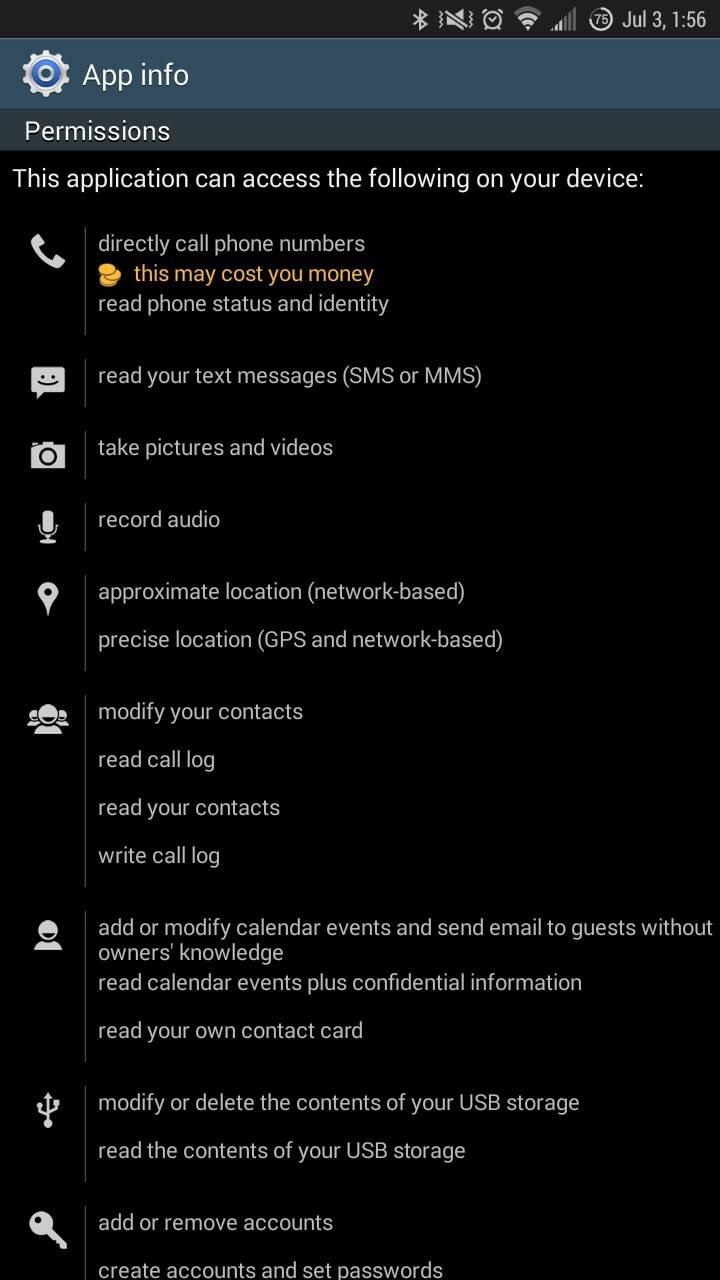
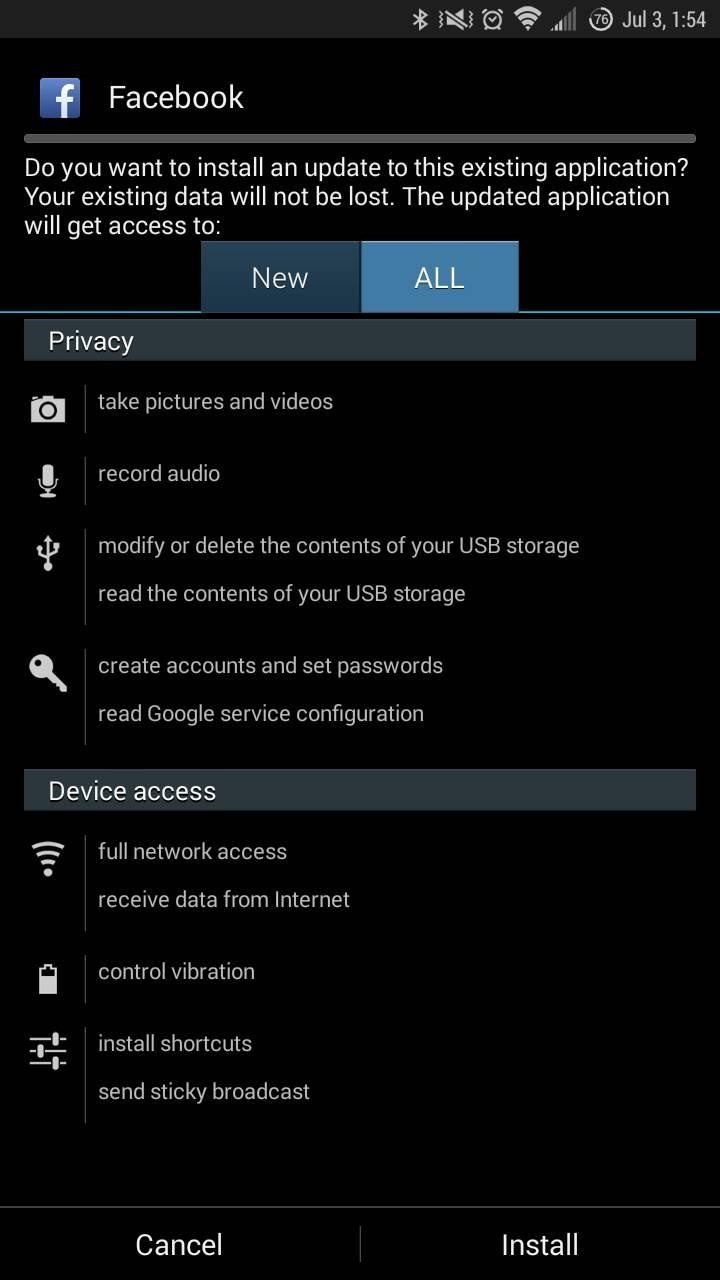
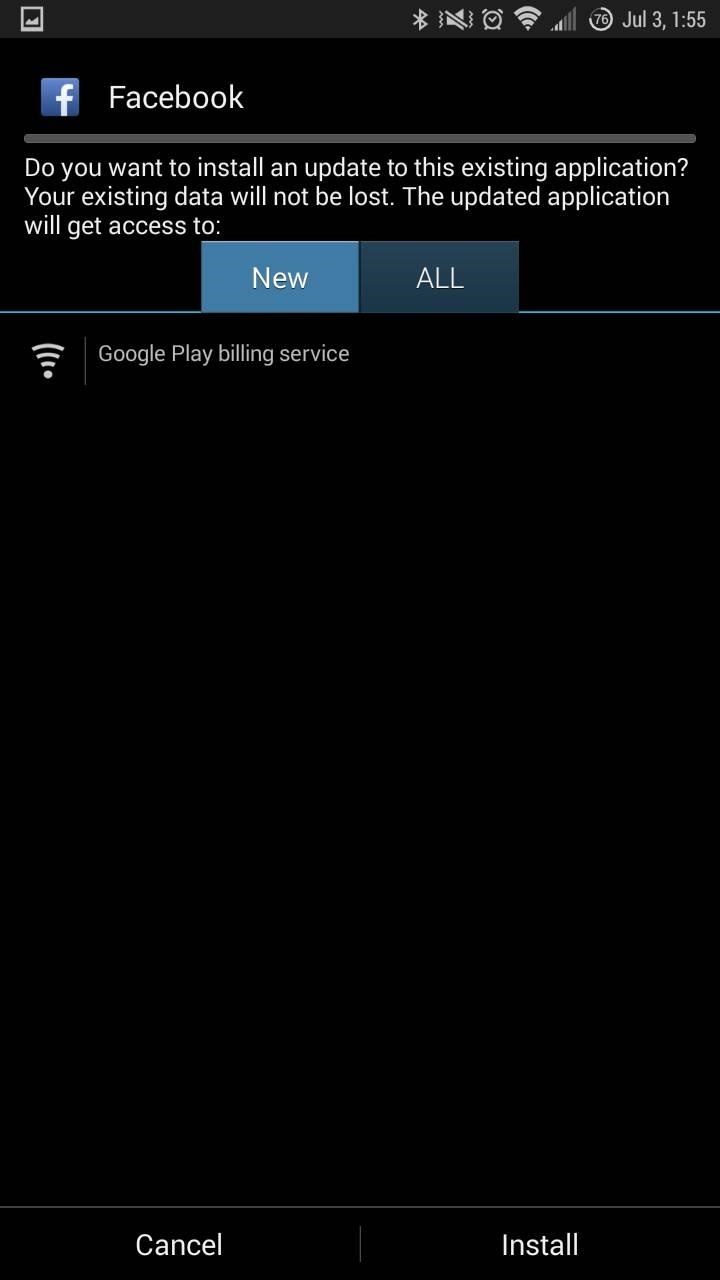
[1] Standard app (only the first page of permissions). [2] Modified app above. [3] Modified app below.
For an even more stripped-down, minimal version of Facebook, tap here to grab an even further modded Facebook app from the same dev. This one has cross-app communication (logging in with Facebook) removed, which may or may not be desirable. Personally, I like the easy login process using my Facebook account, so this version's not for me.
Step 2: Uninstall the Current Facebook App
If you currently have the standard Facebook app installed on your device, go ahead and uninstall it before moving on.
Step 3: Install & Use the Modded Facebook APK
This part's easy. Pull down on your notification panel and tap on the completed download notification to install whichever one you downloaded in Step 1 above. If you happened to clear your notifications, you'll find these files in your Downloads folder (accessible through any file browser or theDownloads app).
Once installed, open the app, sign in, and use like you normally would.
For Rooted Users
We've covered Xposed countless times here, and it's a favorite on our phones and tablets. Those who are unfamiliar with the modding tool should check out our guide to installing the Xposed Framework on your Samsung Galaxy Note 3. Although it's over in our Galaxy S5 section, it works for all Android devices.
Step 1: Install AppOpsXposed Module
AppsOps was once a standard feature that allowed control of permissions on a per-app basis, but was removed in Jelly Bean. Since I'm running 4.4.2 KitKat on my Note 3, I'll need to bring back AppOps so the permissions manager can be used, and developer caspase has the module to do just that—AppOpsXposed.
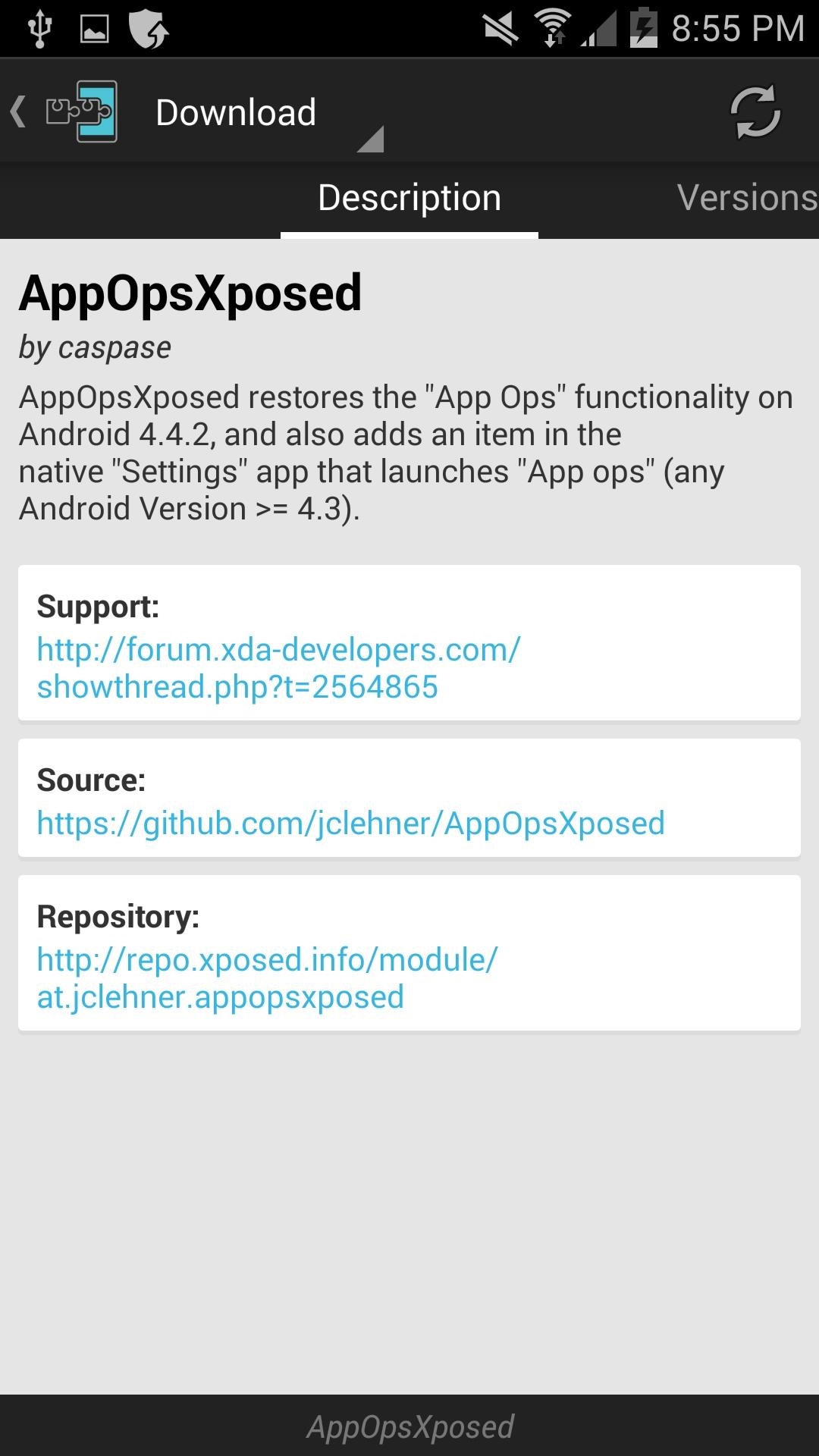
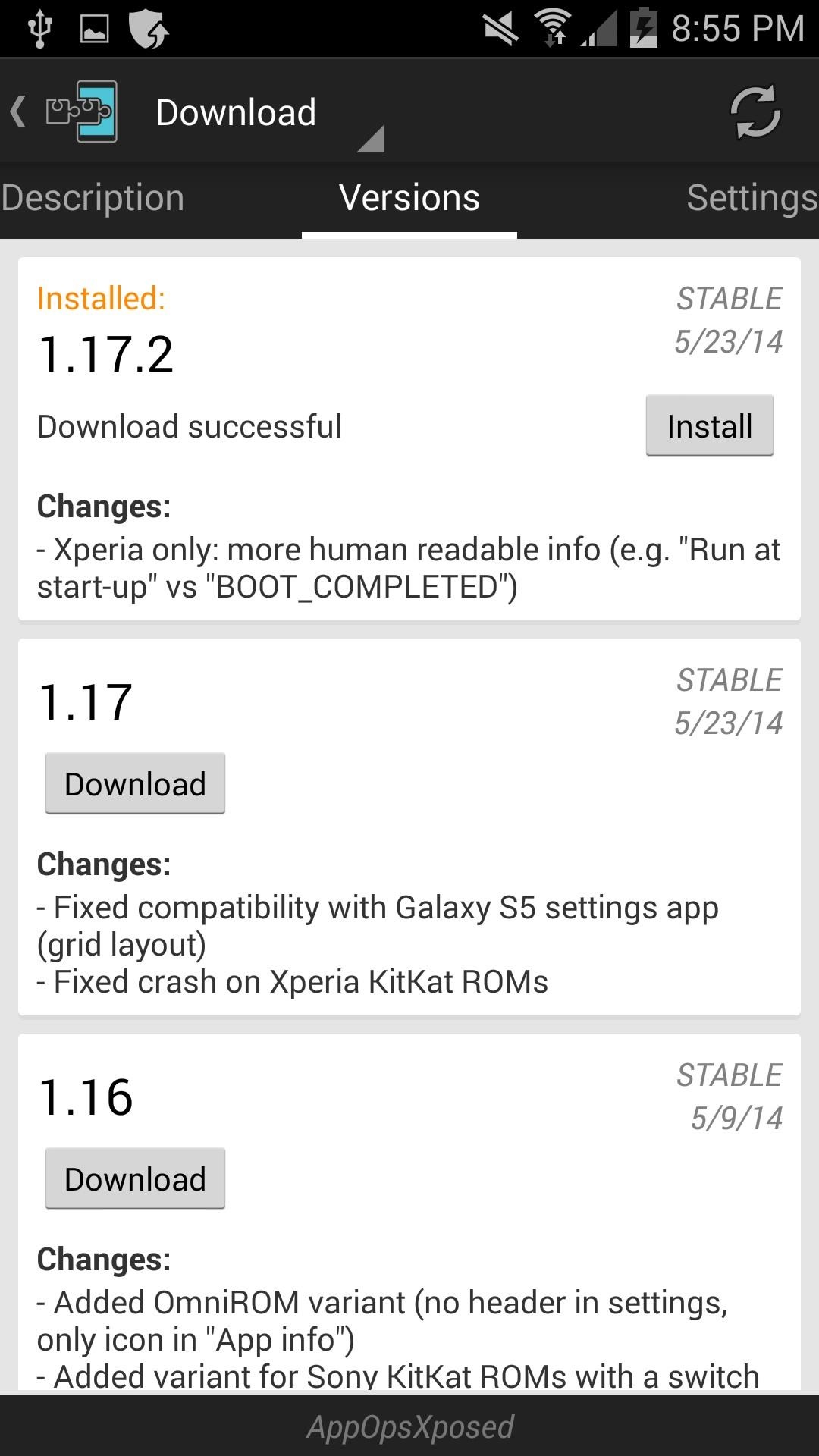
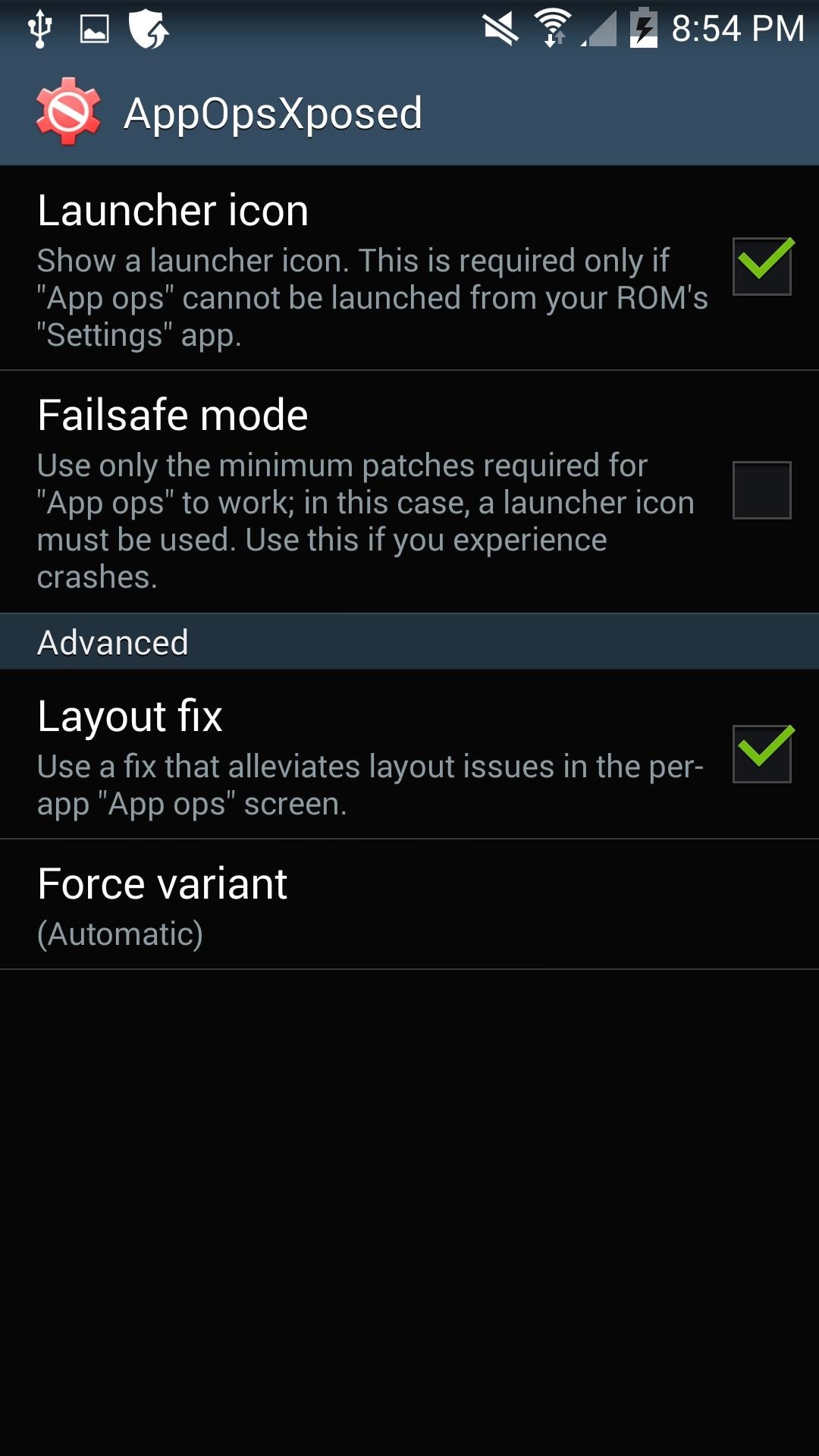
Just search for and download the app in Xposed, or get it directly from here. To activate it, make sure to reboot your device.
Step 2: Using AppOpsXposed
Launch into AppOps with the AppOpsXposed icon, or through your Settingsapp, then find and tap Facebook to see its permissions. Now just switch off whichever permissions you're uncomfortable with.
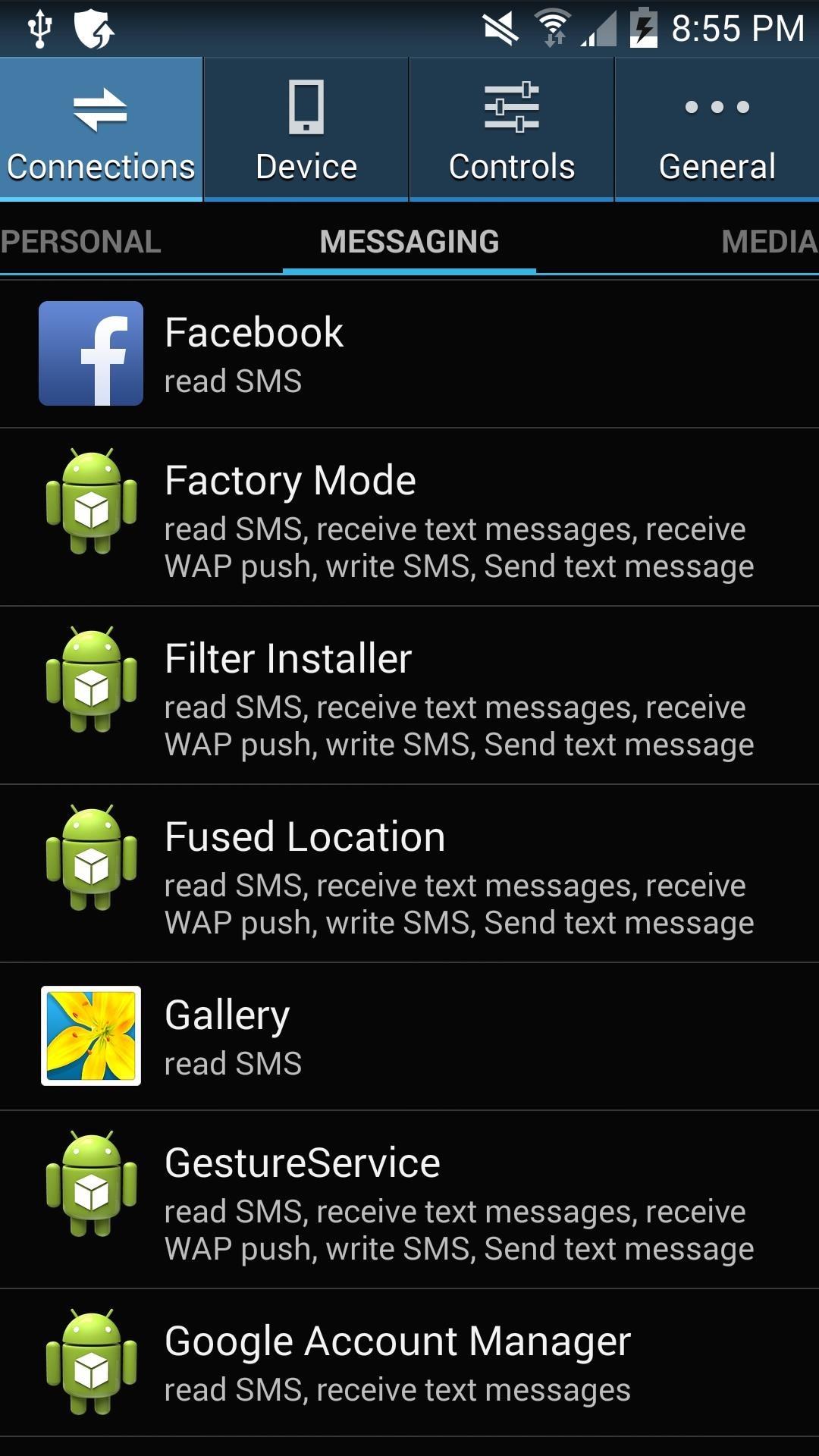
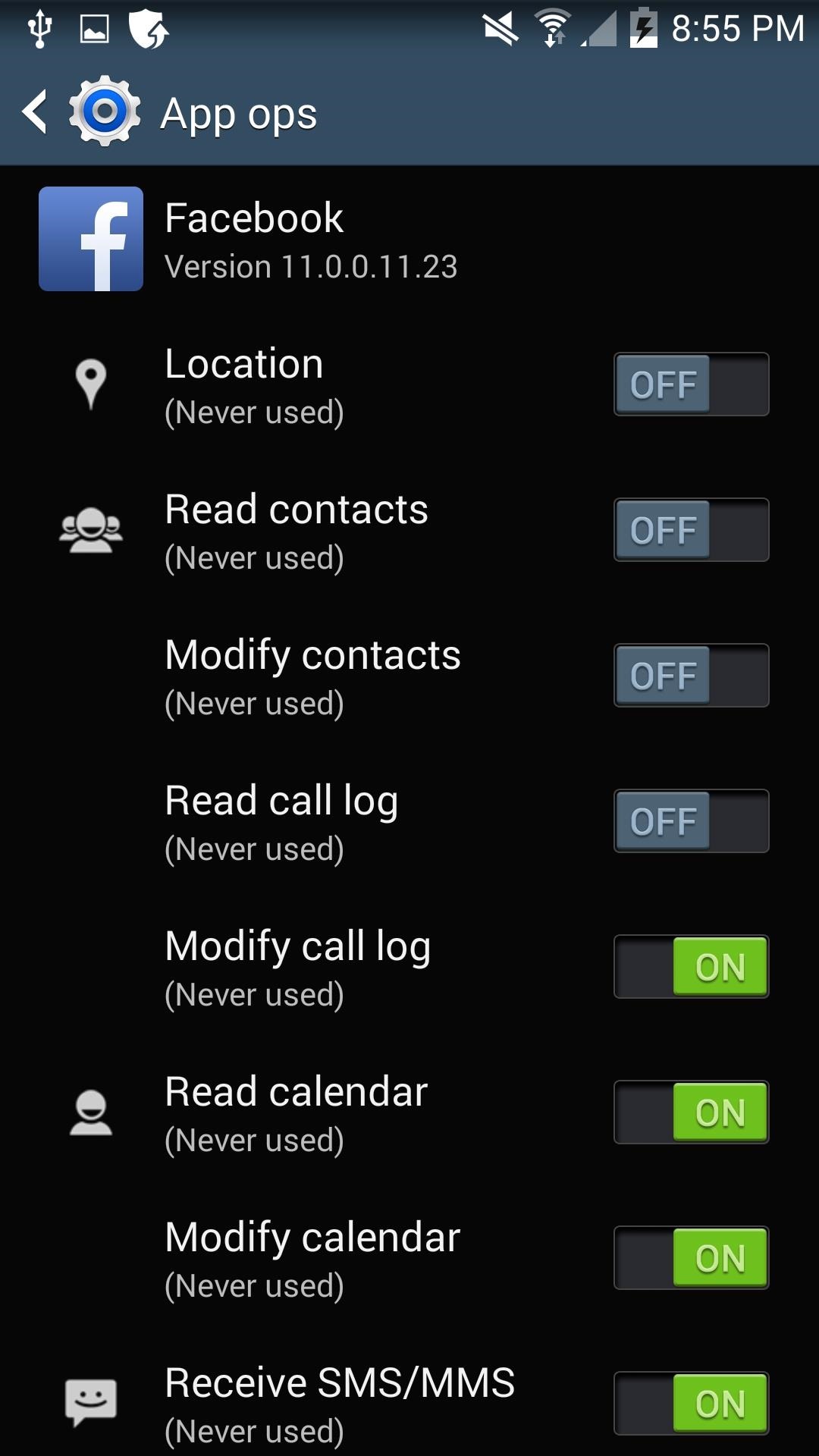
Some permissions are essential to getting your News Feed to load, so don't turn everything off. But things like reading call logs, texts, calendar, and contacts are all safe to disable. If you find that something in the app breaks, just turn back on the permissions from Settings.

Some small fixes on Android L theme, added space bar icon.
New dark and dark red Android L themes.
V10
New android L theme.
V9
Updated to latest swiftkey 5.0.2.4
V8
Updated to latest swiftkey 5.0.1.87
Added full white theme.
Some fixes.
V7
Updated to latest swiftkey 5.0.1.77
Added support for any resolution phone
Added Full Black and Sense Black themes.
V6
(6.2)
Fixed some drawables not fully matching on dark red theme.
Fixed minimal blue
Re-added Holo and cobalt due to request.
Changed Minimal and Dark Orange colour to lighter tone (wasn't showing as good as it was on sense orange).
(6.0)
This release includes many tweaks and improvements to nearly all the themes, including:
-Slider is now themed in all coloured themes.
-Dark themes have been greatly modified to make them less instrusive, less distracting with nicer looking popups.
-Some colour corrections on some themes, lighter upper characters on Google theme,
- Themed colour and Increased transparency of Flow's Trace on Sense and Minimal themes and modified colours of traces on Google themes.
Added Sense Orange and Sense Purple due to several requests.
Removed all remaining stock themes, Dark Red is now default for new users.
V5
App signed now with a personal private key to improve security, as a downside you must uninstall previous version to be able to install this one.
Fixed (,!?) icon not themed on Google and minimal themes
Added Google red, blue, green and yellow themes.
Added Dark and Minimal Gray themes for those you dont like colour on their keyboards.
Added Sense theme And Sense theme with four colour accents (blue, green, yellow and red).
V4
Added Google theme.
Added Minimal themes (6 colours).
V3:
Tweaked red theme (not so vibrant, more pleasant for your eyes)
Removed some unnecesary stock themes to make the package lighter (you wont use them anyway).
V2:
Added 5 more themes (Dark Blue, Dark Orange, Dark Purple, Dark Green, Dark Yellow).
Fixed Theme names under theme chooser.
V1:
Initial version, added "Dark Red" Theme under "neon"
Based on Swiftkey version 5.0.0.72
Source
This post was edited by 12dyl1983 23:12,Feb-01-2014
SHOW BOX
|
| Amazing collection of Movies and TV-shows. Absolutely free. You can download them on your Android device or watch online. Show Box is a noteworthy Media & Video android app that created by Ivan Nichiporuk on Aug 23, 2013, it gets 4.5 stars,over 5000 Show Box apk downloads by users, you will find all the Show Box's functions and you can free download Show Box apk here. Browse some of your favorite Android apps in this page, which will be instantly available on your Android phone or tablet. People who downloaded and installed Show Box apk also interested in , Media & Video apps. |
Official Link:
http://showsbox.ru/data/showbox.apk |
 |
 |
 |
 |
 |
 |
 showbox-1.apk (1.19 MB, Downloads: 140)
 Source:http://forum.xda-developers.com/showthread.php?t=2630803
Thanks to @pico hackr from XDA
See below for pricing options.
Now also available for Chrome: http://goo.gl/ETMNa3
Now also available for Chrome: http://goo.gl/ETMNa3
Play Videos directly on your Smart TV
vGet supports DLNA/UPnP to play (cast) videos directly on a DLNA-Device in your local network. Many devices out there support DLNA, for example Smart TVs, XBox, MediaCenters, AllShare Devices etc. As opposed to many other DLNA-tools, vGet does not relay the video stream over your mobile device but streams directly from the internet. This saves battery life - the video even keeps playing when you switch off your Android device completely. So vGet offers Chromecast-like functionality without requiring additional hardware.
It also supports Chromecast.
It also supports Chromecast.
Download Videos
Download any video for later offline viewing. vGet includes an integrated download manager that supports multiple concurrent connections to speed up downloads. It automatically increases the number of connections as long as this improves the download speed, if supported by the server.
Stream Videos
Play embedded videos with the player of your choice. Choose any installed Video-Player (e.g. MXPlayer, VLC, etc.) to stream them directly without downloading. This even works for flash videos.
Supported Videos
vGet works as a simple web-browser and is therefore able to detect HTML5-Videos on any site. It can even detect some flash-videos, without requiring flash player to be installed. Note that support for flash videos is limited, so don't expect it to work on every site. But it has been reported to work quite some sites, including putlocker, sockshare, movshare, novamov, filenuke, played, nowvideo, clicktovie, nosvideo, videozed, faststream, nowvideo, potlocker, putme, bitshare, streamcloud, movreel, vidstream.in, xvidstage, billionuploads, primeshare, ginbig, ...
Pricing
This is a trial version that is limited to a 14 day trial period. The trial can be unlocked inside the App (in-app billing) for ~3.30 € plus VAT, if applicable. You'll see the exact price in your local currency before you buy it. Buying it removes Ads and allows to use it for a unlimited time on all your devices that use the same Google-Play account for installation.
Alternatively it can be used for free by recommending it to others using the integrated referral feature. Each successful referral earns you one additional month of free usage. There is no limit to this rule. So you can use it free indefinitely by referring enough users.
Alternatively it can be used for free by recommending it to others using the integrated referral feature. Each successful referral earns you one additional month of free usage. There is no limit to this rule. So you can use it free indefinitely by referring enough users.
Why don't you offer vGet completely for free without requiring referrals?
Developing and maintaining an App costs money. For some very popular Apps, Ads can cover these costs. Unfortunately that doesn't work for vGet. We think that the 14 day trial period should allow you to figure out if actually want to use it. Charging for vGet is the only way to keep working.
But it's way too expensive: Well, you often don't even get a pint of beer for that amount. Also be aware that we've to spent at least 2/3 of the price on transaction fees and taxes.
But it's way too expensive: Well, you often don't even get a pint of beer for that amount. Also be aware that we've to spent at least 2/3 of the price on transaction fees and taxes.
Limitations
- Youtube is not supported due to terms of service restrictions.
- No support for any streaming formats (HLS, rtsp)
- Flash videos are not detected on all websites
Reasons for App-Permissions:
- Full network access: required for downloads and DLNA.
- WLAN-Multicast: required for DLNA to detect local devices.
- USB-Storage: required for saving downloads.
- Start at boot: to resume downloads automatically after rebooting.
- Prevent sleep mode: required while downloading to keep active downloads running.
- Accounts (use accounts on the device/find accounts): Used as authentication for the optional referral feature.
- Full network access: required for downloads and DLNA.
- WLAN-Multicast: required for DLNA to detect local devices.
- USB-Storage: required for saving downloads.
- Start at boot: to resume downloads automatically after rebooting.
- Prevent sleep mode: required while downloading to keep active downloads running.
- Accounts (use accounts on the device/find accounts): Used as authentication for the optional referral feature.
If you experience any problems or have suggestions for improvements, please report them on http://vget.w69b.com/bugs.


